Chainage markers
The Chainage Marker tool creates chainage references along a line, spline, or Bezier path.
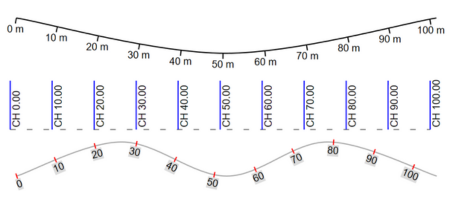
What the tool does
Chainage markers automatically generate:
- ticks at a chosen spacing,
- labels showing chainage values,
- a path that can follow linear geometry on the plan.
This is useful for roads, corridors, paths, and other long linear features where you need repeated position references rather than a single measurement.
Typical workflow
- Select the Chainage Marker tool.
- Draw or define the path it should follow.
- Set the tick spacing.
- Adjust label position, alignment, and orientation in the Properties palette.
Why use chainage instead of distance markers
Use a regular Distance Marker when you need one measured span or a small set of spans.
Use a Chainage Marker when you need a continuous sequence of references along a route.
Related snapping behavior
Chainage markers work best when the source path is drawn accurately. Use Control points and snapping to:
- snap onto existing geometry,
- follow curved alignments,
- position labels and ticks more precisely.