Arrows
Frequently, you will need to draw attention to items on the plan, but will not want to use a callout box. RapidPlan provides two arrow tools for this purpose:
- the Arrow tool,
- the Arrow Text tool.
As the names suggest, the latter carries a text component at its base. The arrows can be curved or straight, as shown.
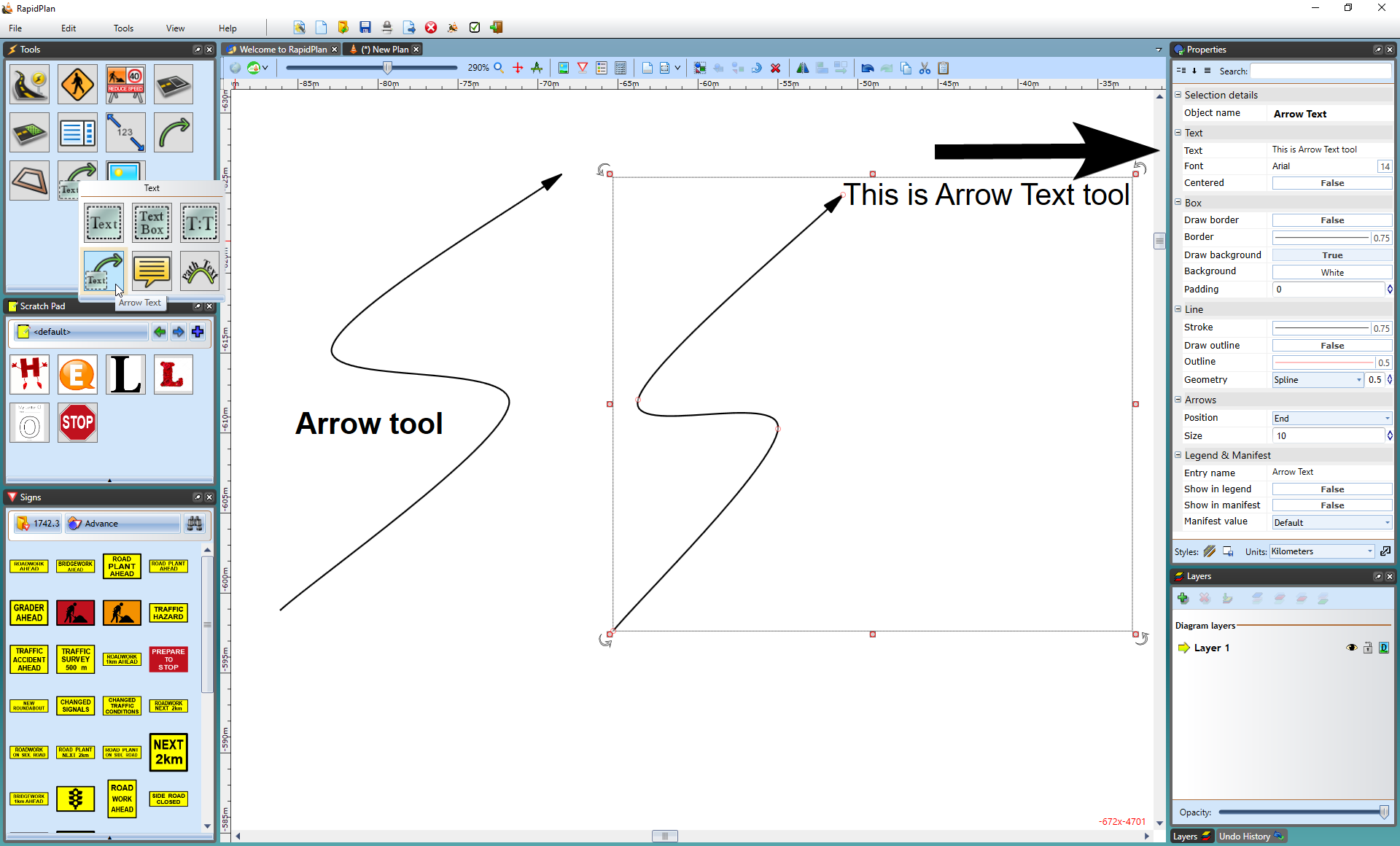
Creating an Arrow
- select the Arrow tool from the Lines tab in the Tools palette,
- click to place the head of the arrow,
- click again for each subsequent turn point that you require,
- when you have placed your final point, right-click,
- right-click to clear the cursor.
Creating an Arrow Text
-
select the Arrow Text tool from the Text tab in the Tools palette,
-
click to place the head of the arrow,
-
click again for each subsequent turn point that you require,
-
when you have placed your final point, right-click and a text cursor will appear for you to write your text in (Note: This can be edited in the Properties palette).
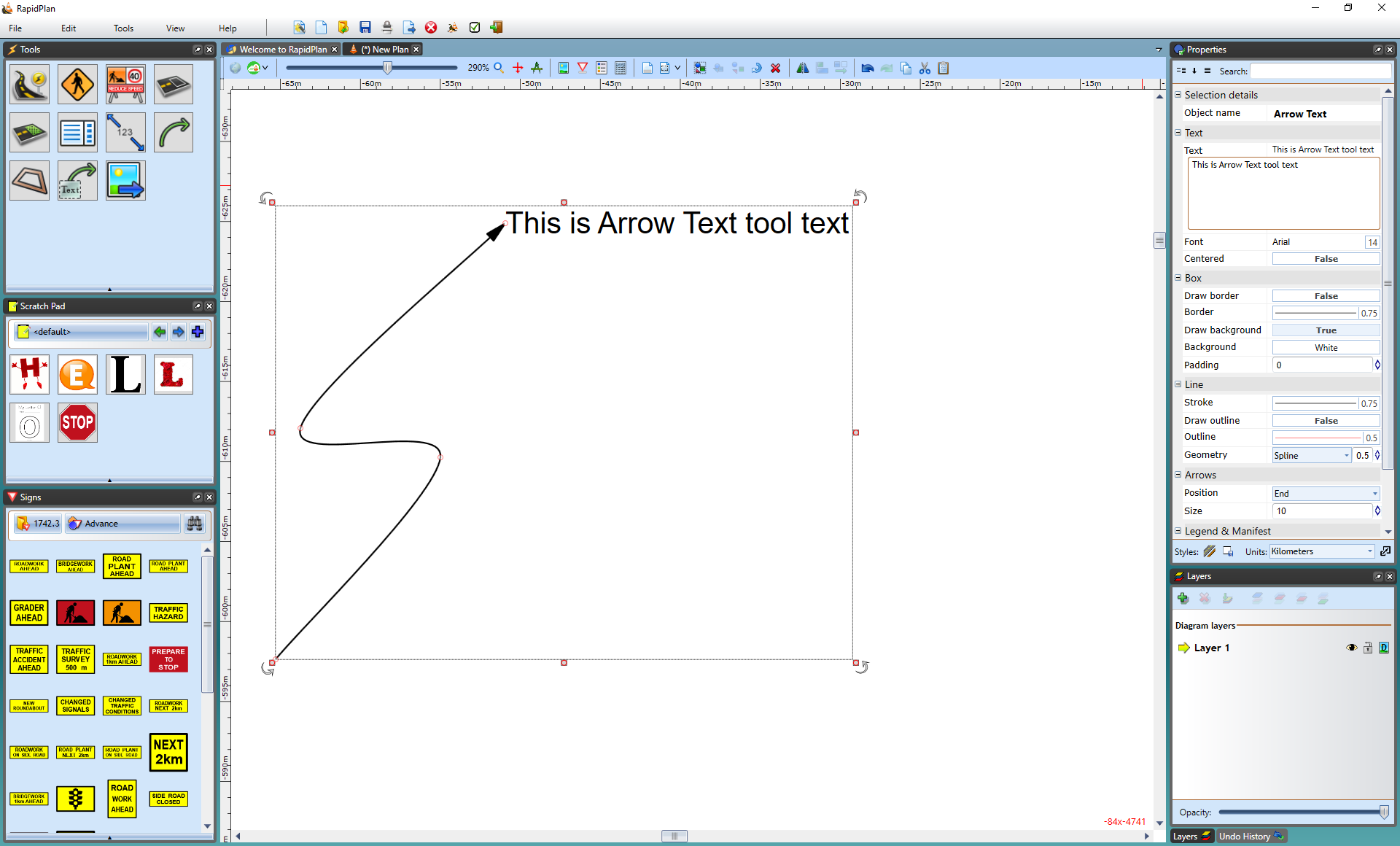
Note: To create a straight arrow, hold Shift whilst drawing the arrow.