Context menu
Select an object and right-click to open a menu of additional options.
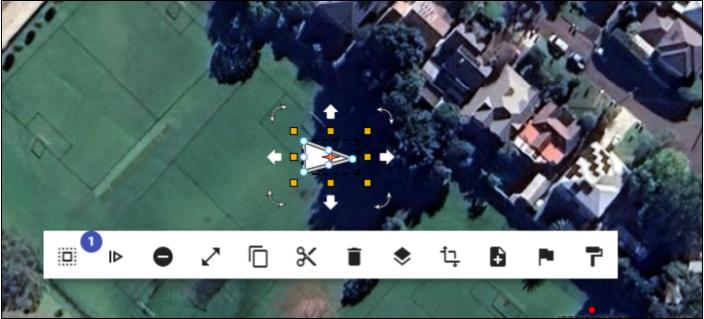
Context menu items for single-item selections
The options will vary based on the object that is selected, but the main options from left to right are:
- Group Selection list: Allows you to see what items are selected, and allows you to deselect items using the 'X' button,
- Maximise: Show a larger version of the Context Menu,
- Continue Drawing: Place more control points, starting from where you had previously completed drawing the object,
- Remove last CP: Remove the last control points placed,
- Copy: Copy the object (it can be pasted using Right Click > Paste),
- Cut: Like Copy but removing the original object,
- Delete: Delete the item,
- Arrange: Move the item backward or forward in comparison to other objects on the same layer,
- Transform: Flip, rotate, or transform an object or group of objects,
- Add to Scratchpad: Add the object to your Scratchpad,
- Convert to Sign: Convert the item to a sign,
- Style: Save the Properties of the object to your Styles, that can then be Applied to an object of the same type in the future - using the same Style button in the Context Menu.
Other context menu items for multiple-item selections
- Group: Group the items,
- Align: Perfectly align the selected items, either vertically or horizontally.
Note: Is the Context Menu in your way? Hold the Shift key to hide it.