Object order within a layer
Objects in the same layer are drawn in an order, often called their z-order. Changing that order lets you place one object in front of or behind another object on the same layer.
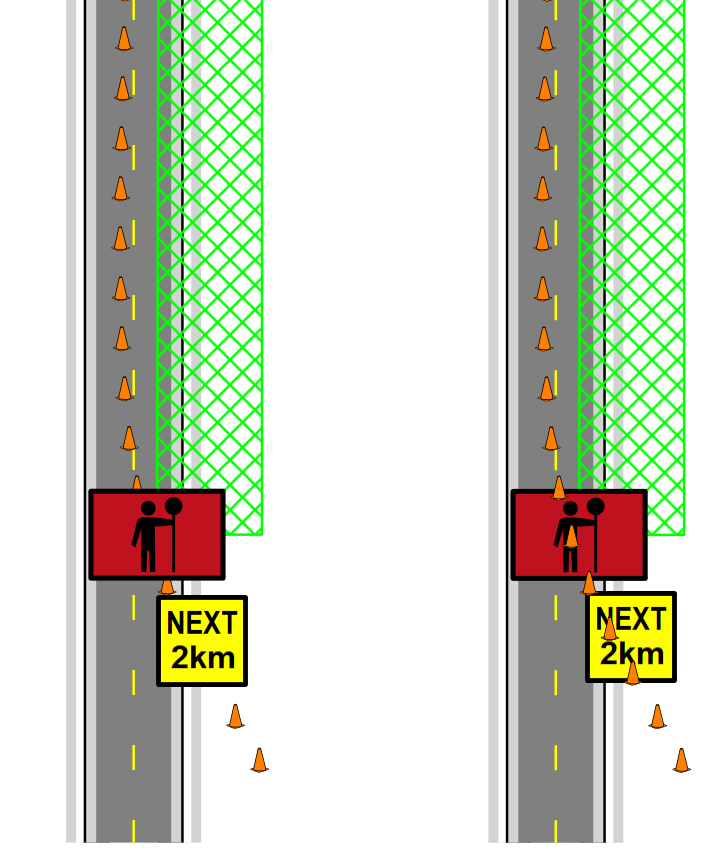
Change object order
To change object order with the context menu:
- Select the object.
- Right-click the object.
- Open Arrange.
- Choose Bring to front, Bring forward, Send backward, or Send to back.
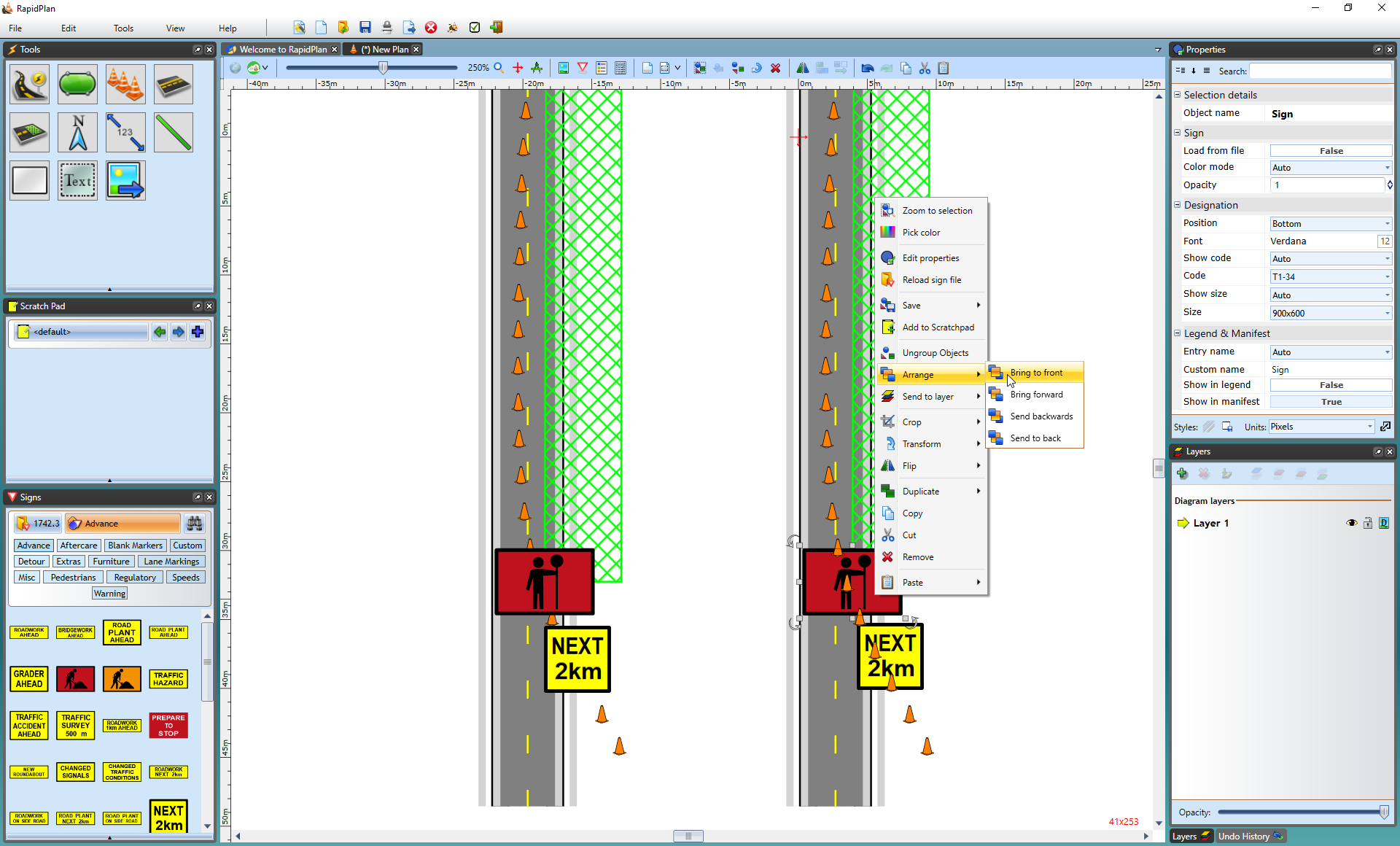
You can also use keyboard shortcuts:
- Alt + Home brings the object to the front,
- Alt + Page Up brings the object one step forward,
- Alt + Page Down sends the object one step backward,
- Alt + End sends the object to the back.
Layer scope
Object ordering only applies inside the current layer. If an object is on a lower layer, bringing it to the front still keeps it behind objects on higher layers.
To change that relationship, move the object to another layer or adjust the layer order.