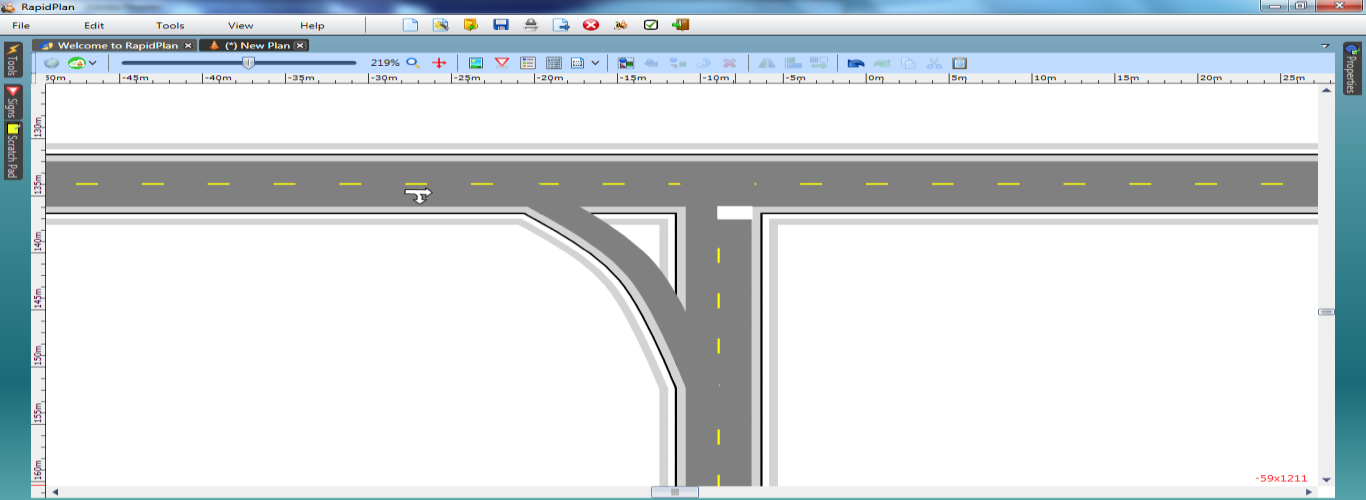
Slip lanes
One of the most important skills in RapidPlan is learning to make slip lanes. Fortunately, they are very simple to do.
| Slip lane | |
|---|---|
 | This T-intersection with a Slip Lane makes use of the following items: - Road tool - Lane Mask tool - Rectangle tool - Control Points - Furniture from Signs palette |
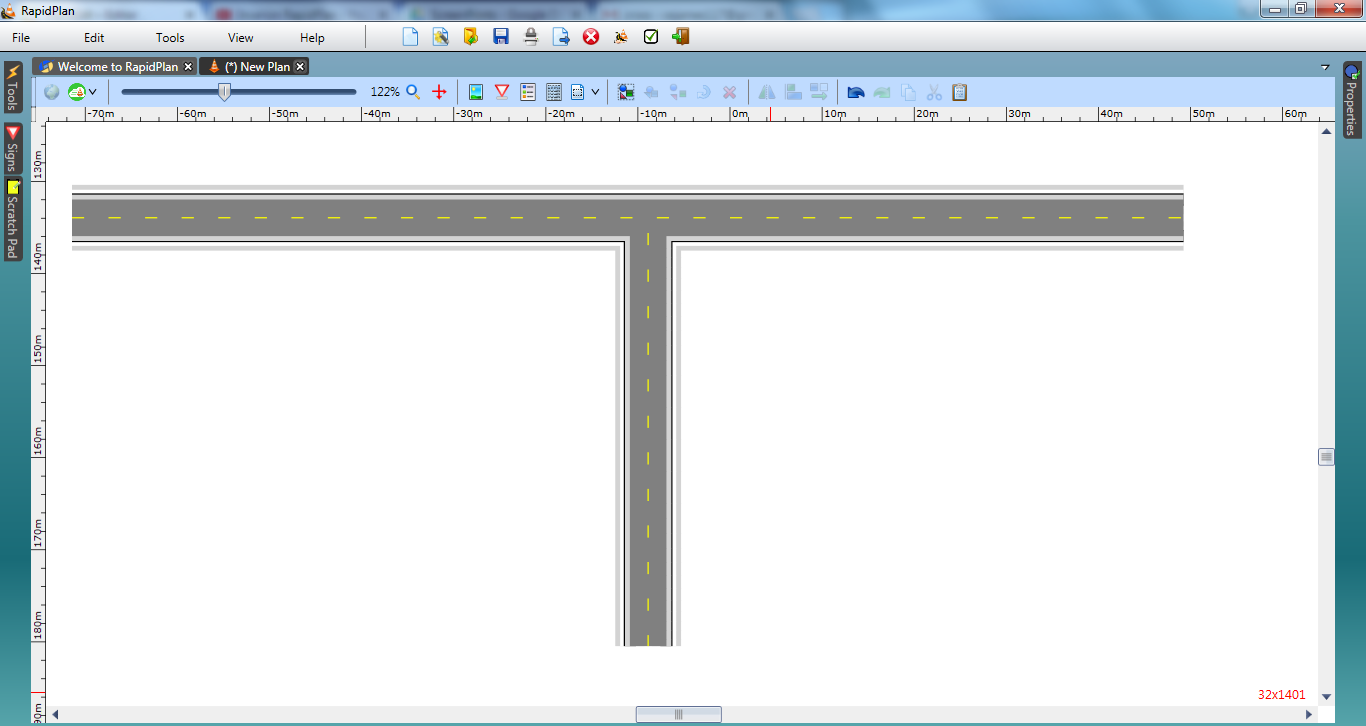
Create the base roads
-
Select the Road tool from the Roads tab and create an east-west road of 2 lanes, then add a north-south road.
Create the Slip Lane
-
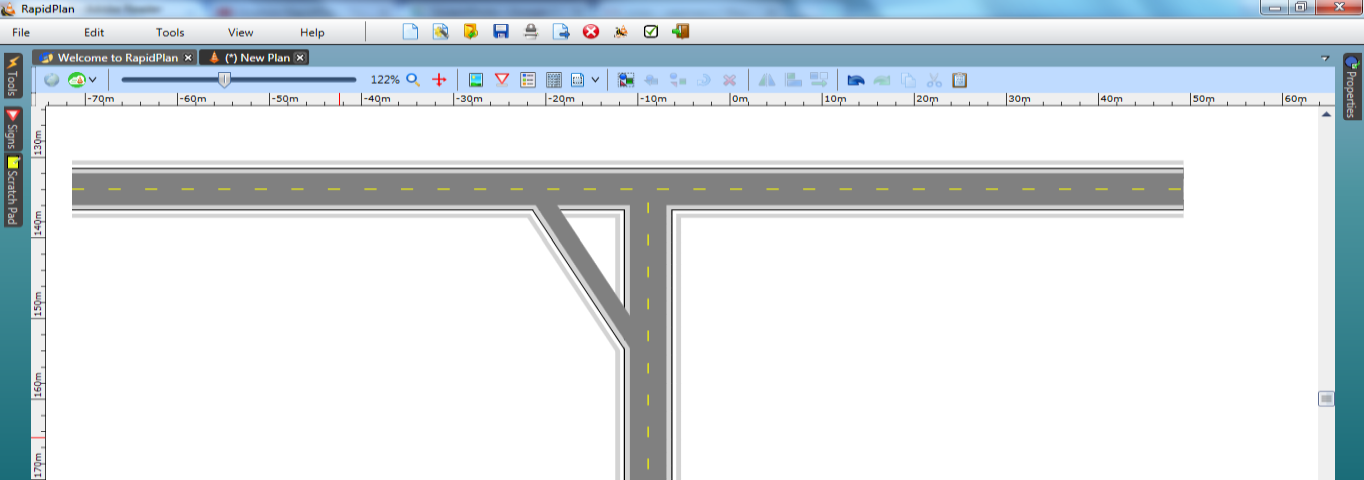
Select the Turn Lane tool from the Roads tab and create a diagonal road as shown below.
-
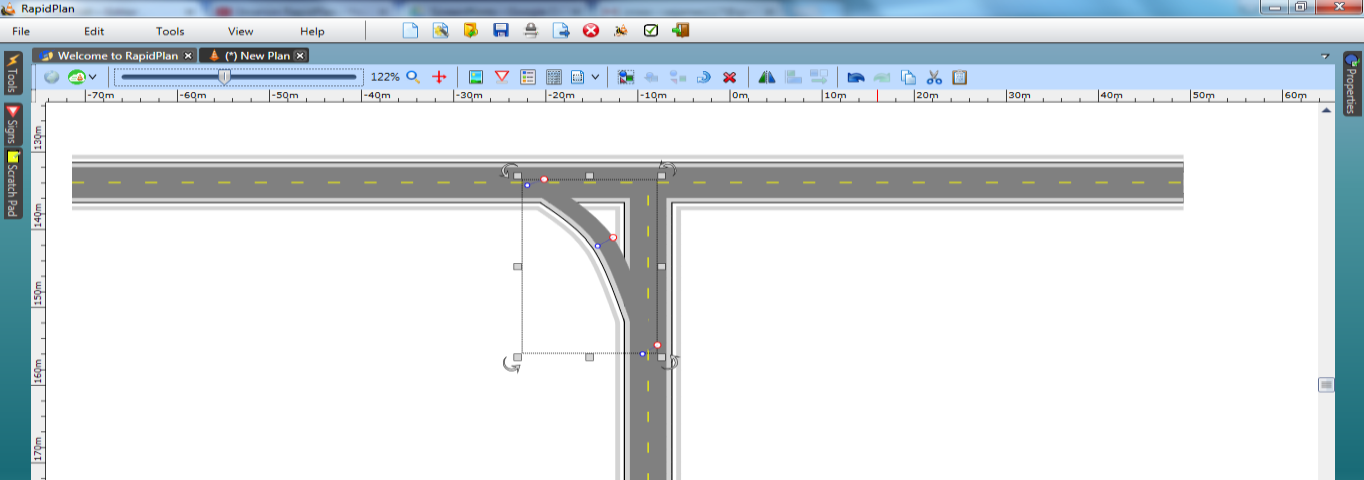
Move half way along the Turn Lane, right-click and select Insert control point. Move the control point to shape the road to a fluid curve as shown.
-
Add any necessary pavement markings.