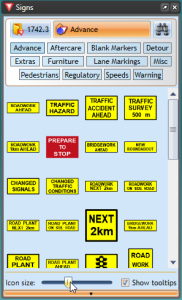
Signs palette
The Signs palette is the repository for each of the signs in RapidPlan. Aside from the signs themselves, the Signs palette has three main components:
- sign library,
- sign categories,
- search signs.
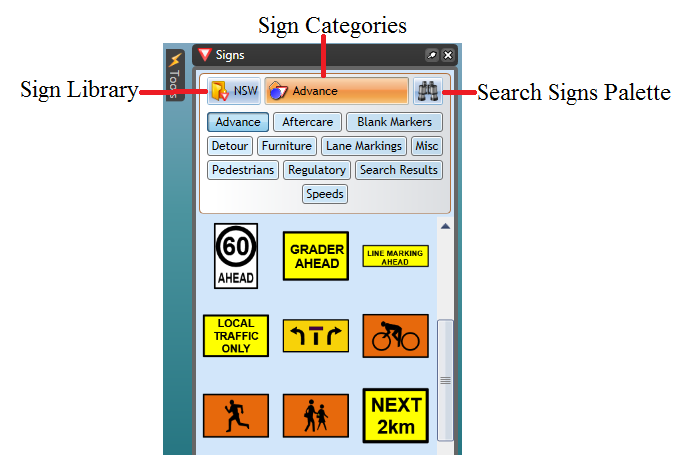
Sign library
This drop down control allows you to select which signage pack you wish to use. In some cases you will only have one pack installed, but certain countries will have numerous state/region packs also installed. Changing the sign pack often changes sign tab options.
Sign categories
The signs are organized into tabs so that they are easy to find. Clicking through the tabs will reveal the signs for each category. You can view and example of the categories in the image below.
Search signs
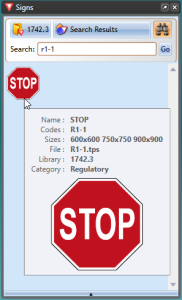
Use the search field to find signs by keyword, phrase, sign name, or sign code. For example, enter stop or the applicable sign code to find a stop sign.
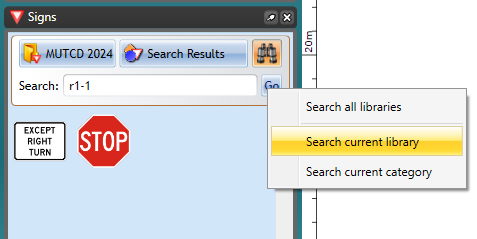
Advanced search
You can control how broadly RapidPlan searches when a sign library contains many signs.
- Enter a search term in the Search field.
- Right-click Go.
- Choose a search scope:
- Search all libraries searches every installed sign library,
- Search current library searches only the selected sign library,
- Search current category searches only the open category in the selected sign library.
RapidPlan displays matching signs on the Search Results tab. Use a narrower scope to reduce the number of results.
Setting the sign icon size in the palette
You can change the size of the signs in the palette. This is helpful when using a screen at very high resolution, or just for users who are having difficulty with the small icons. By default the sign icon size on the palette is set to medium.
To change the signs icon size:
- click on the bar at the base of the Signs palette to make options appear,
- the size bar will pop up enabling you to select a different size (see below).