Printing multiple pages
Print several print regions together when you want to create one multipage PDF from a RapidPlan Online plan.
Before you begin
Create and position each print region that you want to include. For help setting up print regions, see Layers palette.
Print multiple pages
- In the Print Regions section of the Layers palette, select the printer icon to print all print regions.
- In the Print Frame list, confirm that each print region you want to print is selected.
- Drag the print frames into the order in which you want the pages to appear.
- Review the template, page size, orientation, and margins.
- Select Get PDF.
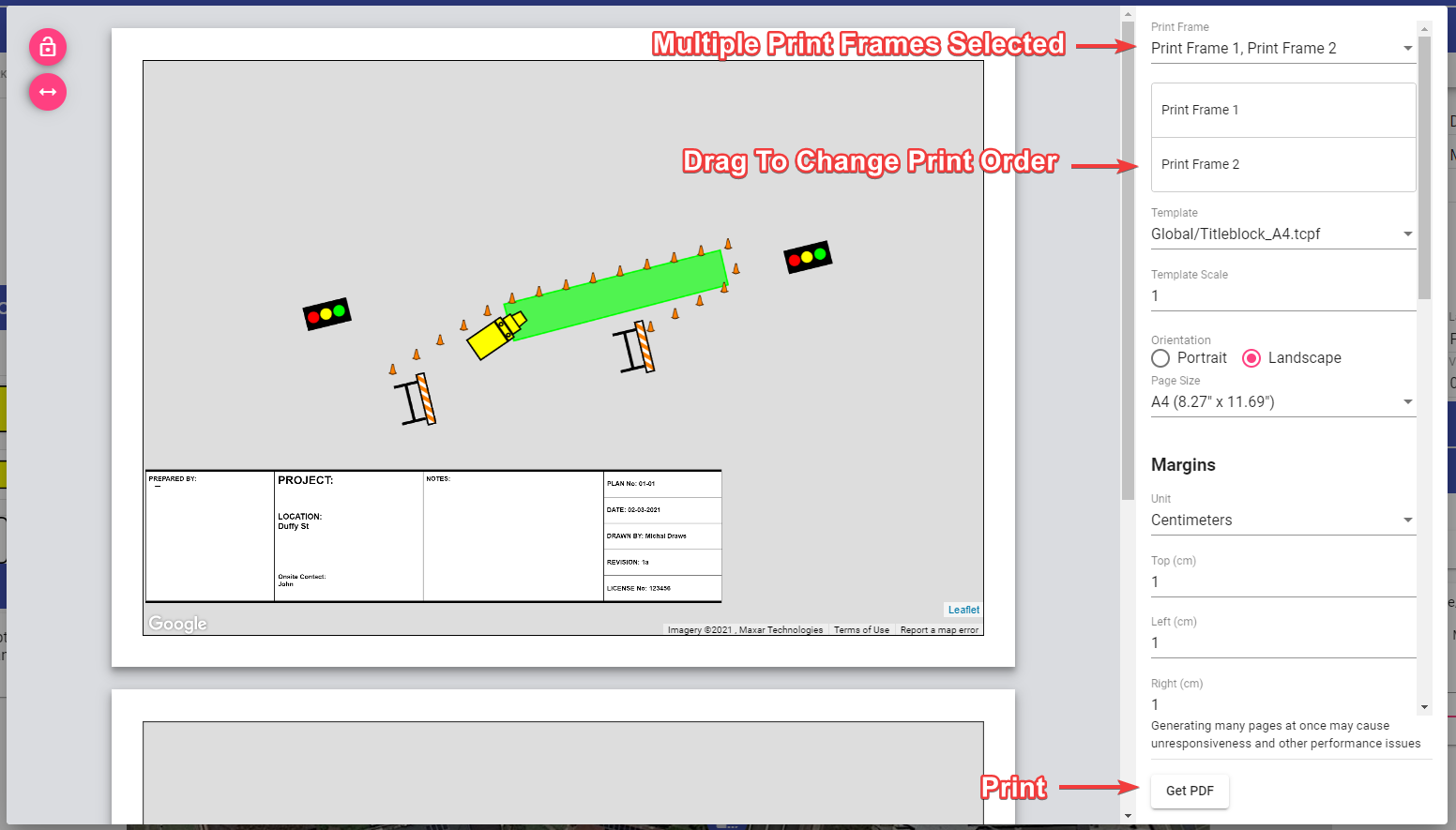
RapidPlan Online generates a multipage PDF with the print frames in the order shown in the list.
Note: Generating many pages at once may cause the application to become unresponsive or affect performance.