Install and use the Invarion Launcher
The Invarion Launcher installs, updates, and opens Invarion desktop applications such as RapidPlan and RapidPath.
Install the Launcher
Download the Launcher installer:
The Launcher usually does not require administrator access. Install it separately for each Windows user who will run Invarion desktop applications.
Contact Invarion Technical Support if your organization needs an MSI-based deployment or has custom installation requirements.
Sign in
Open the Launcher and select Sign In.
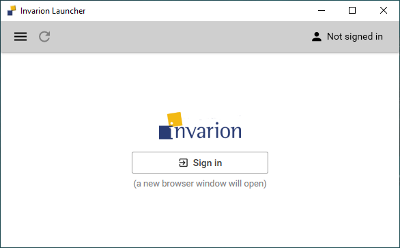
The Launcher opens a browser window where you can sign in with your Invarion account.
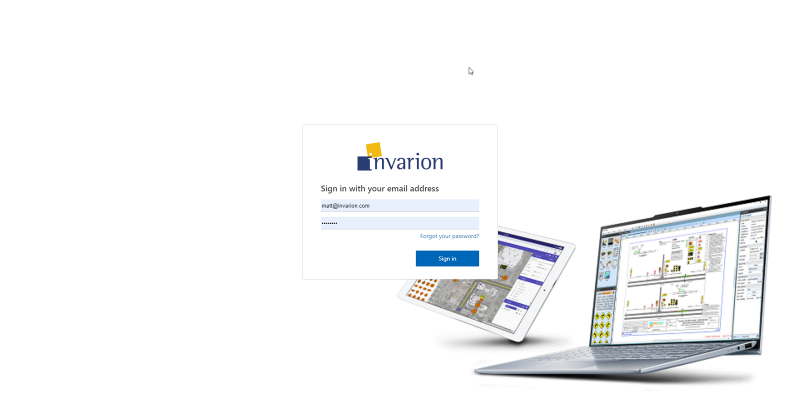
After sign-in is complete, close the browser window and return to the Launcher.
If you have forgotten your password, use the Forgot your password link on the sign-in page.
Open an application
After you sign in, the Launcher shows the Invarion desktop applications assigned to your account, such as RapidPlan and RapidPath. The applications you see depend on your licenses and add-ons.
Select Open next to the application you want to use.
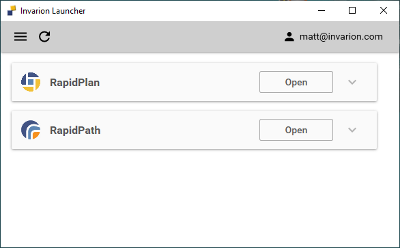
If the application needs to be installed or updated, the Launcher downloads the required files automatically before opening it.
Select the refresh icon in the Launcher to check for updates or refresh the list of available applications.
If an application is missing, ask your account administrator to check that the correct license or add-on is assigned to your user. See Manage licenses and add-ons.
Check version and add-on details
Open the application details to see the installed version and assigned add-ons.
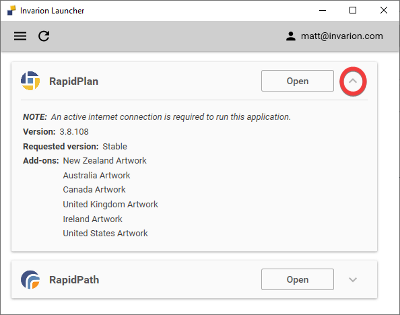
add-ons are assigned from your Invarion account. See Manage licenses and add-ons.
Launcher settings
Open the Launcher menu to access Settings.
In Settings, you can change the default folder used for downloaded application files.
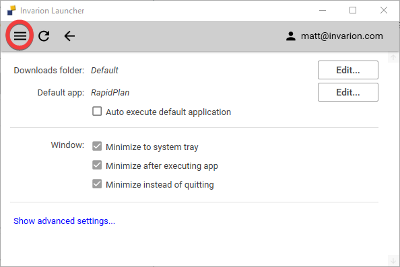
The Launcher also includes advanced settings. The Launcher warning for those settings is:
The settings below are used for advanced debugging and troubleshooting. To avoid getting locked out, please consult Invarion Technical Support before editing them.
If you have a technical issue with the Launcher or an Invarion desktop application, see Troubleshoot Launcher issues.