Choose an update channel
The Invarion Launcher updates each desktop application from an update channel. Stable is the default and the best choice for most users. Choose another channel if you want bug fixes or new features sooner, or need to stay on the previous major version for a while.
Update channels
| Channel | Description in the Launcher |
|---|---|
| Stable (recommended) | Official releases, critical bugfixes only, and the fewest updates. The best choice for most people. |
| Hotfix | Official releases plus all bugfixes. Use it if you don't mind more frequent updates. |
| Weekly | Early access to new features, plus all bugfixes. Very frequent updates and a higher risk of new issues. |
| Extended | Extended access to the previous major version, with all its bugfixes. Updated once per cycle, but doesn't run the latest release. |
To see what each channel delivers for RapidPlan, see the RapidPlan Release Notes, the RapidPlan Hotfix changelog and the RapidPlan Weekly changelog.
Note: If an application has no release on the channel you choose, the Launcher installs its Stable version.
Check an application's update channel
The channel each application uses is shown in two places:
- the small grey label next to Open on the application's card,
- the Requested version row in the application's details. To open the details, select the arrow next to Open.
While a temporary switch is running, an hourglass icon is shown at the top right of the application's details. Its tooltip shows when the application goes back to Stable, for example "Temporary switch: back to Stable on 16 Nov 2026".
Change the update channel
- Open the Invarion Launcher and sign in.
- Select the arrow next to Open to open the application's details.
- Next to Requested version, select the pen icon (Change the update channel...).
- In the Select Update Channel dialog, select a channel.
- Select Save.
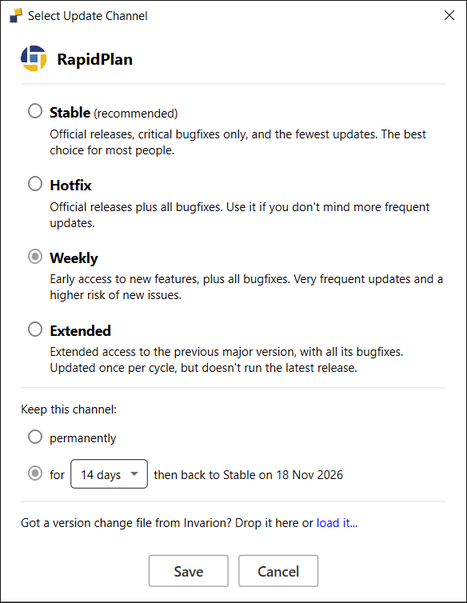
The Launcher updates the application from the new channel. If you're offline, the change applies the next time the Launcher connects.
To use a channel for a limited time only, see Temporary switches.
Temporary switches
A temporary switch keeps an application on another channel for 7, 14 or 30 days, then returns it to Stable.
- Open the Select Update Channel dialog and select a channel, as described in Change the update channel.
- Under Keep this channel, select for and choose the number of days. The dialog shows the date when the application goes back to Stable.
- Select Save.
When a temporary switch ends, the application always goes back to Stable, even if it was on another channel before. The Launcher checks for switches that have ended when it starts, every two hours, and when you select the refresh icon. When a switch ends, a notice at the bottom of the main window confirms it, for example "RapidPlan's temporary switch to Weekly has ended. It's back on Stable." Close the notice with its close icon.
To end a temporary switch early, open the Select Update Channel dialog and choose Stable, or choose a channel and keep it permanently.
Use a version change file from Invarion
Invarion Technical Support may send you a version change file, a small .json file that switches an application's update channel, permanently or for a number of days.
- Open the Invarion Launcher and sign in.
- Drag the file onto the Launcher's main window.
- Read the confirmation, then select Apply.
If the Launcher says it can't use the file, ask Invarion Technical Support for a new one.